
IFC Slicer
Filter and export
any IFC subset
Open an IFC, navigate its full 3D structure and element hierarchy, select exactly what you need, and export a clean IFC subset. Perfect for extracting discipline-specific IFCs or preparing files for handover.
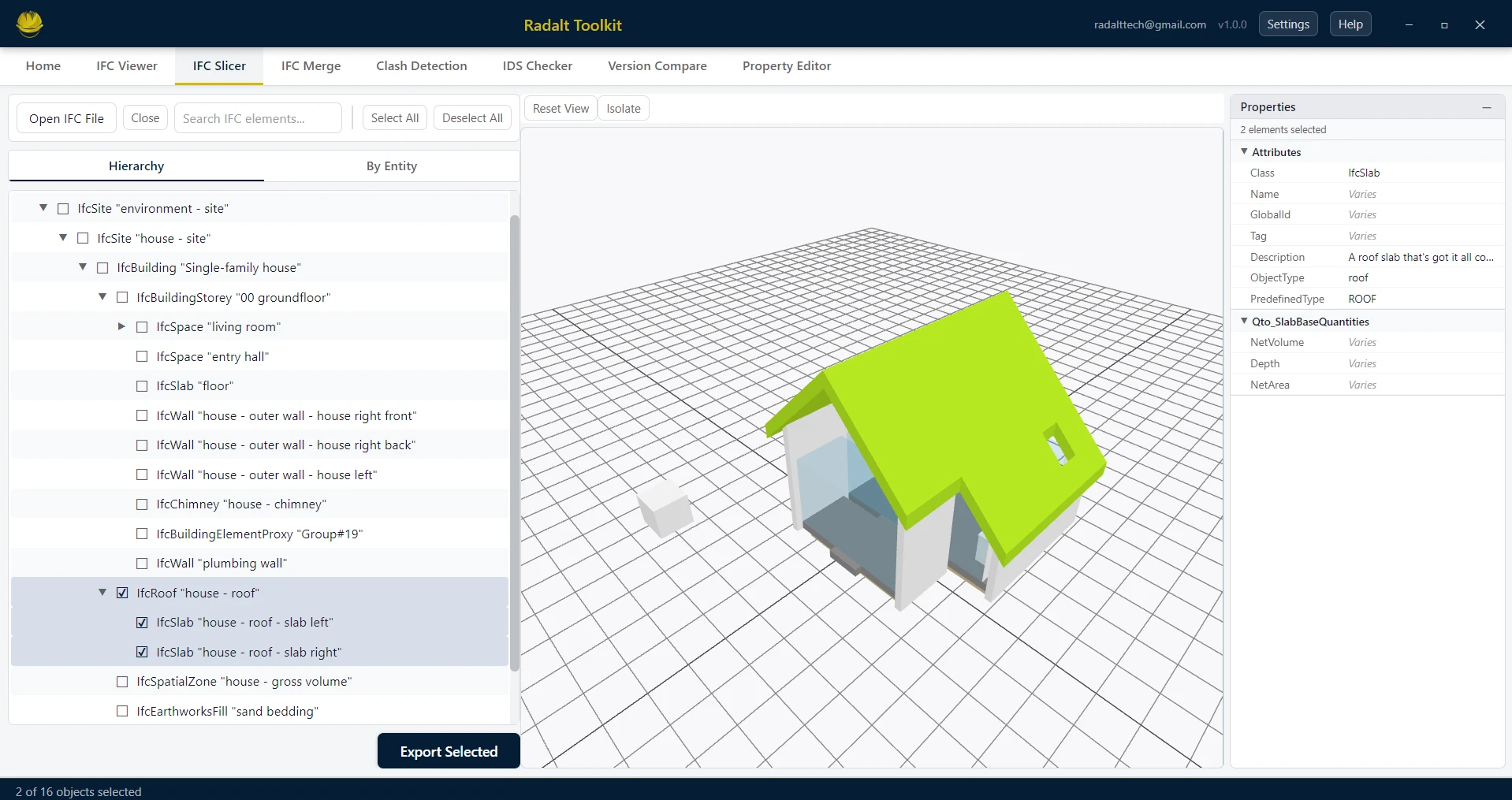
Scenarios recreated using sample files from buildingSMART International website.
Capabilities
What IFC Slicer can do
Hierarchical Tree View
Navigate your IFC through the full hierarchy — project, site, building, storey, and element. Switch to a flat entity-type view to browse by category.
Interactive 3D Viewer
Orbit, pan, and zoom a real-time 3D view powered by ThatOpen Engine. Click any element in 3D to instantly select it and jump to it in the tree.
Search & Filter
Search elements by name or type across the entire IFC. Filter the tree by storey, element category, or your current selection.
Multi-select with Ctrl+Click
Hold Ctrl and click to build a multi-element selection across tree branches. The 3D viewer highlights all selected elements simultaneously.
Isolation Mode
Click Isolate to show only your selected elements in the 3D viewer and hide everything else — ideal for reviewing specific systems or zones.
Property Panel
Click any element in the tree or 3D viewer to instantly see its full IFC property sets and attributes in a dedicated panel — without switching tabs.
Export as IFC Subset
Export your selection as a new standalone IFC. Only the chosen elements, their geometry, and their IFC relationships are preserved.