
IFC Merge
Federate multiple IFCs
into one IFC
Load two or more IFCs from different disciplines, choose your merge depth, preview the combined IFC in 3D, and export a single federated IFC. No manual editing of XML hierarchies required.
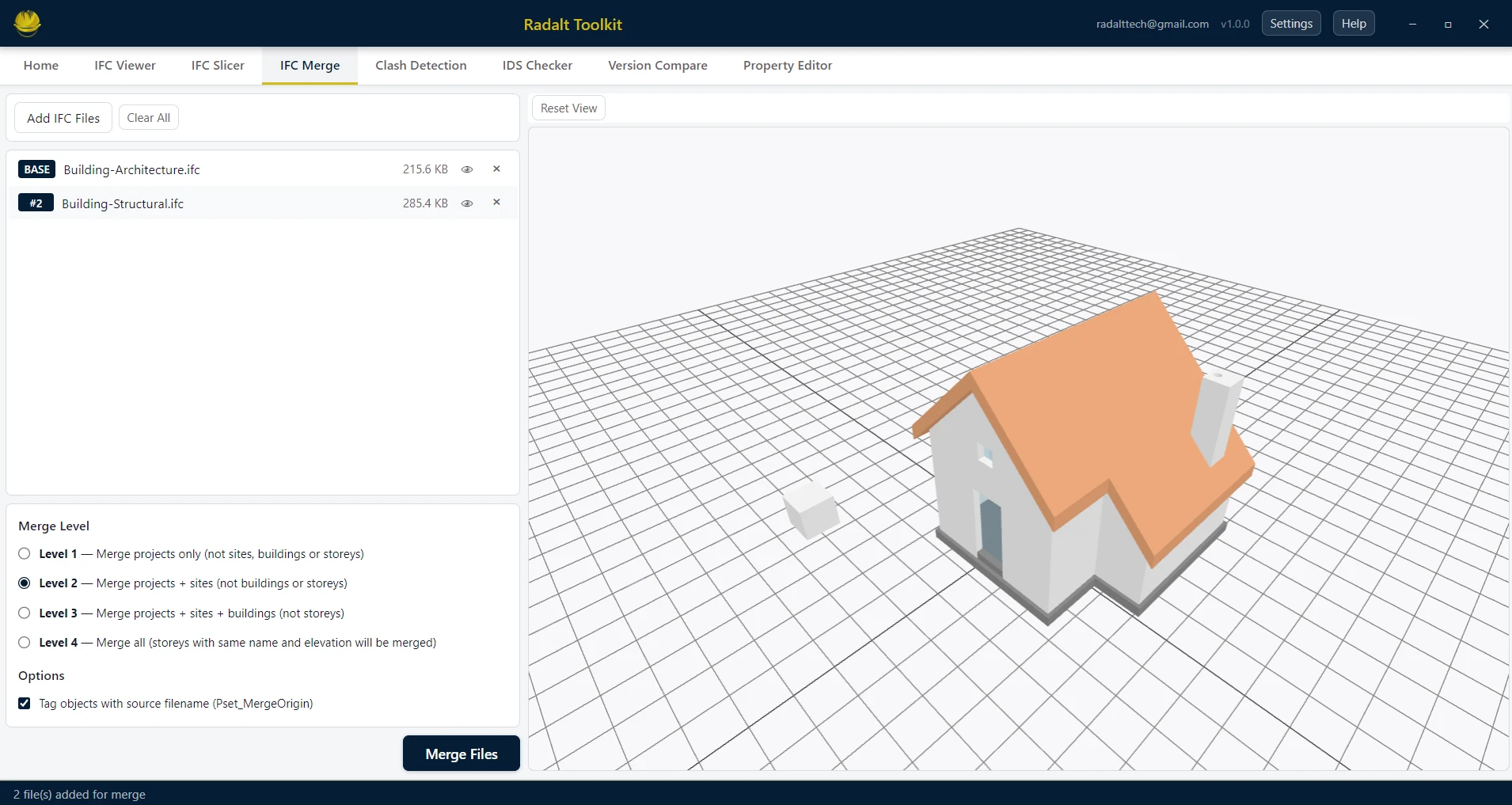
Scenarios recreated using sample files from buildingSMART International website.
Capabilities
What IFC Merge can do
Load Multiple IFC Files
Add two or more IFCs in one session. Each file appears as a separate layer with its own toggle in the 3D viewer.
4 Configurable Merge Levels
Choose how deeply the IFC hierarchy is unified: merge just the projects (Level 1), add sites (Level 2), buildings (Level 3), or fully merge matching storeys by name and elevation (Level 4).
3D Toggle Per File
Show or hide individual source files in the 3D viewer before committing to an export — useful for visually checking alignment and overlaps.
Source File Tagging
Optionally tag each merged element with the name of its source IFC. Useful for traceability in federated BIM coordination.
Federated IFC Export
Export a single combined IFC that preserves all element geometry, relationships, and property sets from every source file.
Same-name Storey Merging
At Level 4, storeys with matching names and elevations across different files are merged into one — ideal for multi-discipline coordination.
Merge Levels
Choose your merge depth
Different coordination scenarios need different levels of IFC hierarchy unification. Radalt Toolkit gives you four options.
Projects Only
All source IFC projects are merged into a single IfcProject root. Sites and buildings remain separate.
Projects + Sites
Projects and sites are unified. Buildings from each source file remain distinct.
Projects + Sites + Buildings
Projects, sites, and buildings are merged. Storeys remain separate per source file.
Full Merge
All hierarchy levels unified. Storeys with the same name and elevation across files are merged into one.